

Check what your face-blurring app saves
Review detection, choose your concealment and inspect the exported copy before sharing.
Blur faces in photos on your Mac, iPhone, iPad or Android device with Blurpeg, or use manual redaction tools for images and PDFs. Review each region, then export a new copy with the redaction flattened into its pixels. Blurpeg does not upload the source to us.
Free to download. Edit freely. First photo or complete-PDF export included. Keep editing afterward; optional one-time purchase for unlimited exports.
Mac requires Apple silicon and macOS 15 or later. Mac, iPhone/iPad and Android purchases are separate.
Choose faces to blur, place PDF redactions by hand, and review the exported copy. Recorded on iPhone. Photo and PDF processing happens on your device.
Swipe or use arrow keys to browse →
Keep selected faces visible and blur others. Review every suggestion before saving.
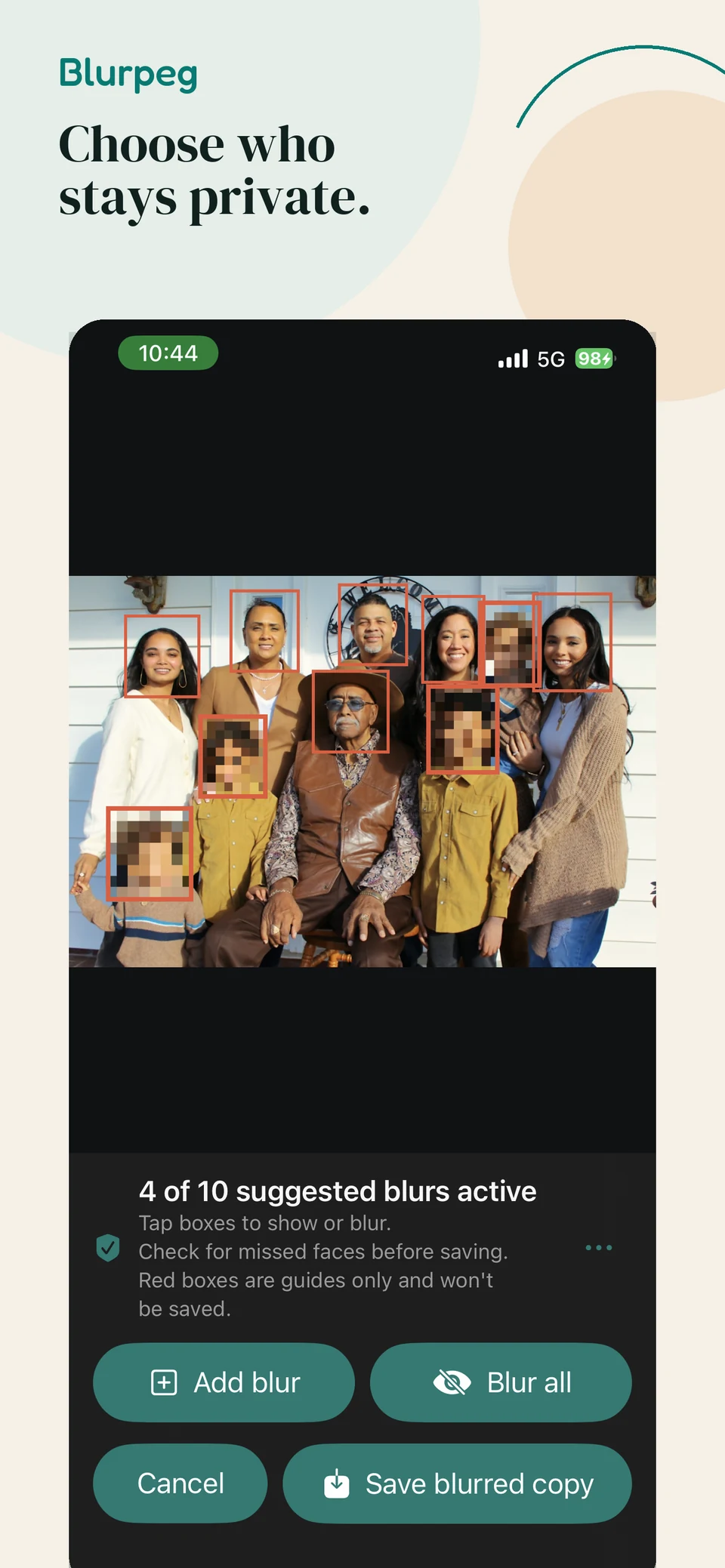 View larger image
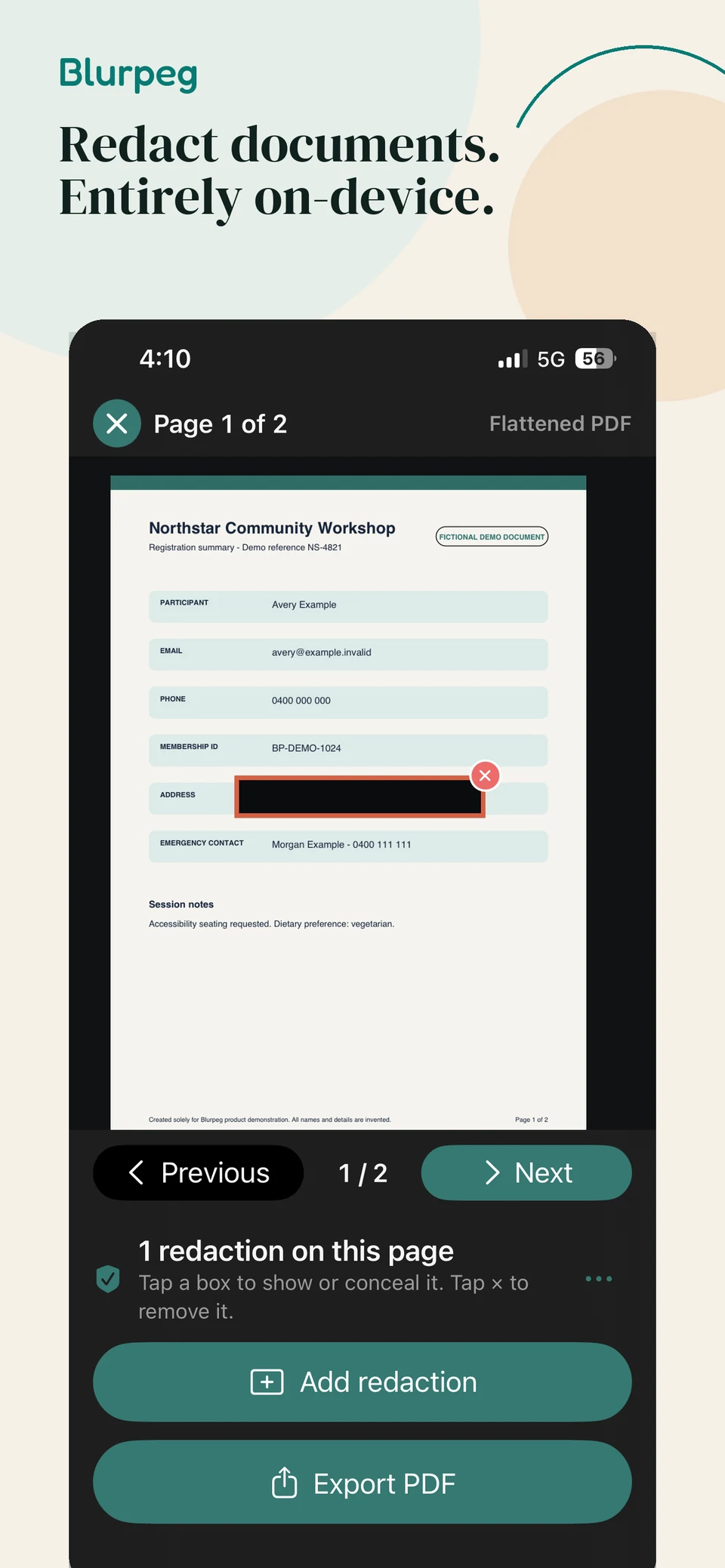
Place redactions over chosen details, then export a flattened, image-only PDF.
 View larger image
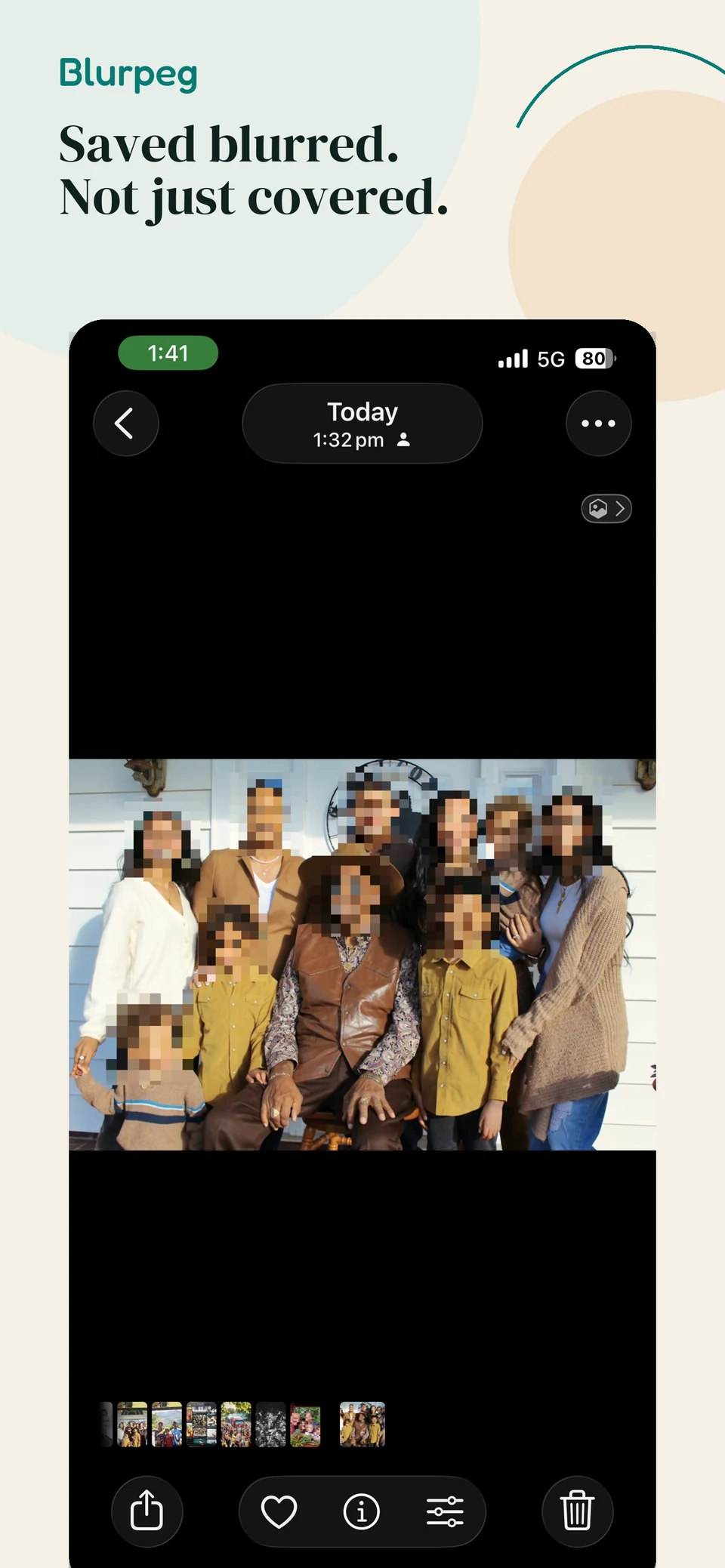
A separate export with all faces blurred, using a different selection from the selective-blur example.
 View larger image
Open a document image from Photos or Files, or move through a PDF page by page. Resize each solid or mosaic region to fit the detail, review the result, then export a new flattened copy. PDF exports are image-only, so searchable text and removable PDF annotations are not carried into the new file.
Practical guides
Review detection, choose your concealment and inspect the exported copy before sharing.
Use on-device face suggestions, check every region and add a manual blur before saving a new copy.
Place solid or mosaic regions page by page, then export a flattened, image-only PDF.
Create a newly encoded JPEG without carrying across source location, EXIF or camera metadata.
Face suggestions can help with group photos. Check for missed faces and review each region before exporting.
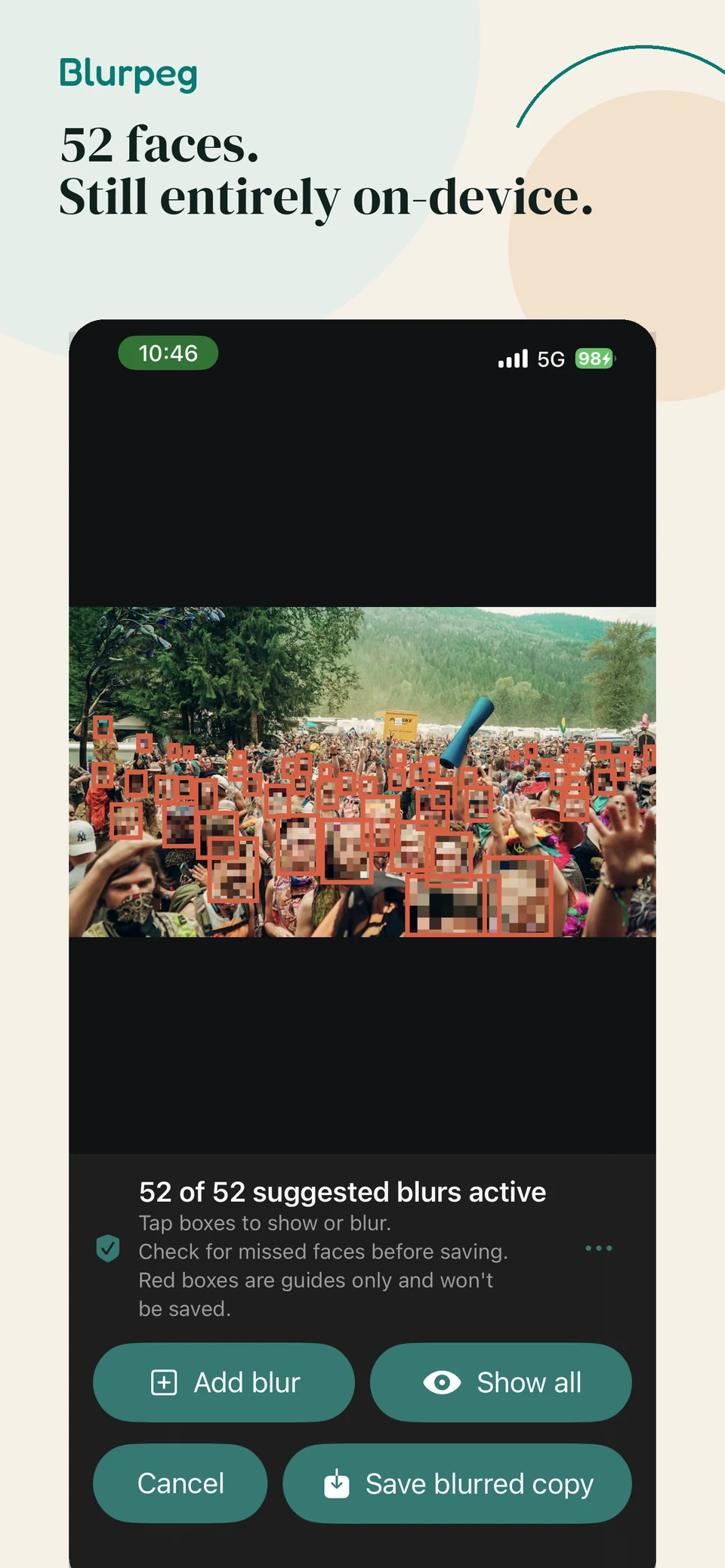
This is one crowd-photo example. Results vary with lighting, angle and image quality.
See Blurpeg find and blur faces on your device. Results vary with lighting, angle and image quality.
 View larger image
On 28 July 2026, Australia's eSafety Commissioner warned that publicly shared school imagery can be copied and misused with AI tools. The guidance asks schools to consider purpose, consent, audience and identifying details before publishing. Read the eSafety guidance.
Taking fewer photos is one response. Blurpeg is exploring another: preserve the moment while reducing the identifying detail that leaves the device.
The Blurpeg app has no source-upload service, account system or client analytics. Detection and redaction happen on your device. When you save, Blurpeg renders a new image or PDF with the chosen regions flattened into its pixels.
Review every image before sharing it. Automated detection can miss a face, and blurring faces does not remove every identifying detail or replace consent and publication decisions.
Blurpeg is powered by Vectrari™ Face, proprietary on-device face detection. The app is available now for Mac, iPhone and iPad on the App Store, and Android on Google Play. We are also exploring pilots and future platform integrations that bring local redaction into an organisation's existing consent, capture and publication workflow.
Blurpeg has no service for uploading your source to our servers. Detection and redaction run inside the app on your device. The camera flow is designed to save only the redacted result, while imported originals remain unchanged.
No. Blurpeg detects where faces appear so they can be redacted. It does not identify people, compare identities or create persistent face profiles.
Vectrari Face is proprietary face-detection technology that runs on your device and returns possible face regions for Blurpeg to redact. It does not identify people or send the image to a detection server.
You review every image before saving it. Blurpeg also provides a manual region tool so you can conceal a missed face or any other identifying detail.
Yes. Automatic detection is for faces, while the manual region tool can redact name tags, logos, house numbers, signs and other visible details.
Yes. Blurpeg can import an image through Apple's photo picker and save a new redacted copy. It does not overwrite or delete the original.
Yes. Open a PDF from Files, add adjustable redaction regions page by page, then export a new flattened, image-only PDF. Blurpeg does not alter the original.
The app creates a newly rendered export and does not copy source location or camera metadata into it.
Try the supported editing tools freely: choose faces to blur or leave visible, add manual regions and manually redact documents. The iPhone app also offers live camera/capture. Editing does not use the included export; creating your first successful output does: a photo or a complete PDF. Keep using the editing tools afterward. The purchase unlocks further exports, not editing tools. Unlimited photo and PDF exports are an optional one-time in-app purchase. The iPhone/iPad purchase is A$4.99 in Australia. A$4.99 is the Australian iPhone/iPad App Store price. The Mac App Store and Google Play show their own applicable price and currency before purchase. Purchases are separate for Mac, iPhone/iPad and Android. Existing paid-download customers retain their eligible unlimited exports on the iPhone/iPad app.
No. Blurpeg reduces visible identifying detail; it does not determine consent or satisfy an organisation's legal and policy responsibilities by itself.
The Mac, iPhone/iPad and Android purchases are separate. An iPhone/iPad purchase does not unlock the Mac app. Restore eligible purchases in the app and store you originally used, with the same store account.
Blurpeg for Desktop is available on the Mac App Store for Apple silicon Macs running macOS 15 or later. Blurpeg is also available on the App Store for iPhone and iPad running iOS or iPadOS 18 or later, and on Google Play for Android.